139

I had setup Docker Desktop with Windows WSL integration version 2 and I run into issue when execute certain docker compose command with following errors

docker compose logs
no configuration file provided: not found

However, there were no problem found when executing the following

docker compose up

and image built and fired up successfully.

Is there anyone who can help with this?


Output of docker info

Client:
 Context:    default
 Debug Mode: false
 Plugins:
  buildx: Docker Buildx (Docker Inc., v0.7.1)
  compose: Docker Compose (Docker Inc., v2.2.1)
  scan: Docker Scan (Docker Inc., 0.9.0)

Server:
 Containers: 3
  Running: 3
  Paused: 0
  Stopped: 0
 Images: 4
 Server Version: 20.10.11
 Storage Driver: overlay2
  Backing Filesystem: extfs
  Supports d_type: true
  Native Overlay Diff: true
  userxattr: false
 Logging Driver: json-file
 Cgroup Driver: cgroupfs
 Cgroup Version: 1
 Plugins:
  Volume: local
  Network: bridge host ipvlan macvlan null overlay
  Log: awslogs fluentd gcplogs gelf journald json-file local logentries splunk syslog
 Swarm: inactive
 Runtimes: io.containerd.runc.v2 io.containerd.runtime.v1.linux runc
 Default Runtime: runc
 Init Binary: docker-init
 containerd version: 7b11cfaabd73bb80907dd23182b9347b4245eb5d
 runc version: v1.0.2-0-g52b36a2
 init version: de40ad0
 Security Options:
  seccomp
   Profile: default
 Kernel Version: 5.10.60.1-microsoft-standard-WSL2
 Operating System: Docker Desktop
 OSType: linux
 Architecture: x86_64
 CPUs: 8
 Total Memory: 24.95GiB
 Name: docker-desktop
 ID: FUMA:ZOXR:BA4L:YSOZ:4NQT:HHIZ:ASAD:EJGA:NJRG:SO4S:GXN3:JG5H
 Docker Root Dir: /var/lib/docker
 Debug Mode: false
 Registry: https://index.docker.io/v1/
 Labels:
 Experimental: false
 Insecure Registries:
  127.0.0.0/8
 Live Restore Enabled: false

WARNING: No blkio throttle.read_bps_device support
WARNING: No blkio throttle.write_bps_device support
WARNING: No blkio throttle.read_iops_device support
WARNING: No blkio throttle.write_iops_device support
1
  • 10
    Try to specify the compose file path like this docker-compose -f <docker-compose.yml> logs Commented Dec 7, 2021 at 8:58

20 Answers 20

105

execute docker-compose command where docker-compose.yml file located at should resolved it.

or specify the docker-compose.yml file as bellow

docker-compose -f <docker-compose.yml> logs 

as suggested

Sign up to request clarification or add additional context in comments.

2 Comments

I copied an old example without the yml extension (I guess once upon a time it wasn't needed). Adding it worked.
This fixed it for me. I had made the noob mistake of thinking that 'docker compose down' would bring down whatever was running from the dir I was in - which it will if your compose file has the default name of 'docker-compose.yml' but it won't if your compose file is called something else.
23

Just had the very same issue on Ubuntu 22.04.3 LTS (Jammy) with a minimal server install that had the "docker" checked during the installation. It appears that the installer choose to install the snap version of docker, resulting in this error:

root@server:/srv/project# docker compose -f docker-compose.yml up
stat /var/lib/snapd/void/docker-compose.yml: no such file or directory

I removed the snap version (snap remove docker), then followed the official installation steps and added the compose plugin (apt install docker-compose). I needed to remove the link to the snap binary (rm /snap/bin/docker) and updated my PATH (as in a logout / login) and voilà.

2 Comments

For me the reason was that I used the -f file option after the up/down command. It must be used before
Here is the reason of the snap issue: stackoverflow.com/questions/53304396/…
14

For anyone who's getting

no configuration file provided: not found

I was getting the same message on Mac trying to execute

docker-compose up

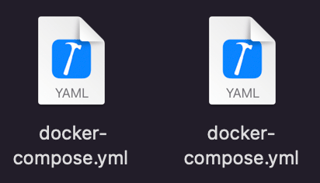
The problem was with docker-compose.yml file. I saved it from Visual Studio Code as a text file though OS determined it like a proper YAML file. Look at the screenshot: left file is wrong but seems the same.

enter image description here

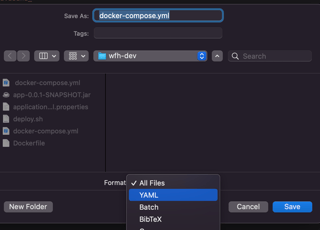
Make sure you select YAML format when you saving it.

enter image description here

1 Comment

God, I was sitting with the same problem for 20 minuntes already... Dude, thank you so much, I have no idea why my docke-compose file was saved as text file when I was creating it from Intellij Idea
8

My configuration:

  • Ubuntu Server 22.04.4 LTS
  • Docker installed via snap

Solution

Move docker-compose.yml file under a user home directory (ie /home/plex) and run docker compose up -d in this directory.

Additional Context

I was originally planning to aggregate all my containers into /opt/stacks. Referencing compose files outside a user home directory results in the error message even if you use a fully qualified path (-f option)

4 Comments

Hey, this helped, thanks!
this helped me realize my issues were because of snap. It wasn't allowing anything to run outside of /home. I ended up removing snap and using the official docker installation.
Is this documented? Any clue why this is the case?
@magikarp looks like it's related to the "confinement" of the Docker snap package: askubuntu.com/questions/1517669/…
2
  1. Docker Compose version v2.17.2
  2. Docker version 24.0.5, build ced0996
  3. Ubuntu 22.04.3 LTS

In my case the problem was that from some point the command became docker compose, but not docker-compose. So the valid command is docker compose up -d.

https://docs.docker.com/compose/migrate/

Comments

1

Issue with Docker Installation via Snap

While attempting to install Docker using Snap, I encountered the issue. However, I resolved it by uninstalling the Snap version and opting for the apt installation method instead.

1 Comment

askubuntu.com/questions/1374480/… - Answer is correct if it is installed with Ubuntu directly on Installation Wizard. Just reinstall ist with apt.
1

Please check the name of the file given. In my case I gave the name dockercompose.yml but it should be like docker-compose.yml. It worked after changing the name of the file

Comments

0

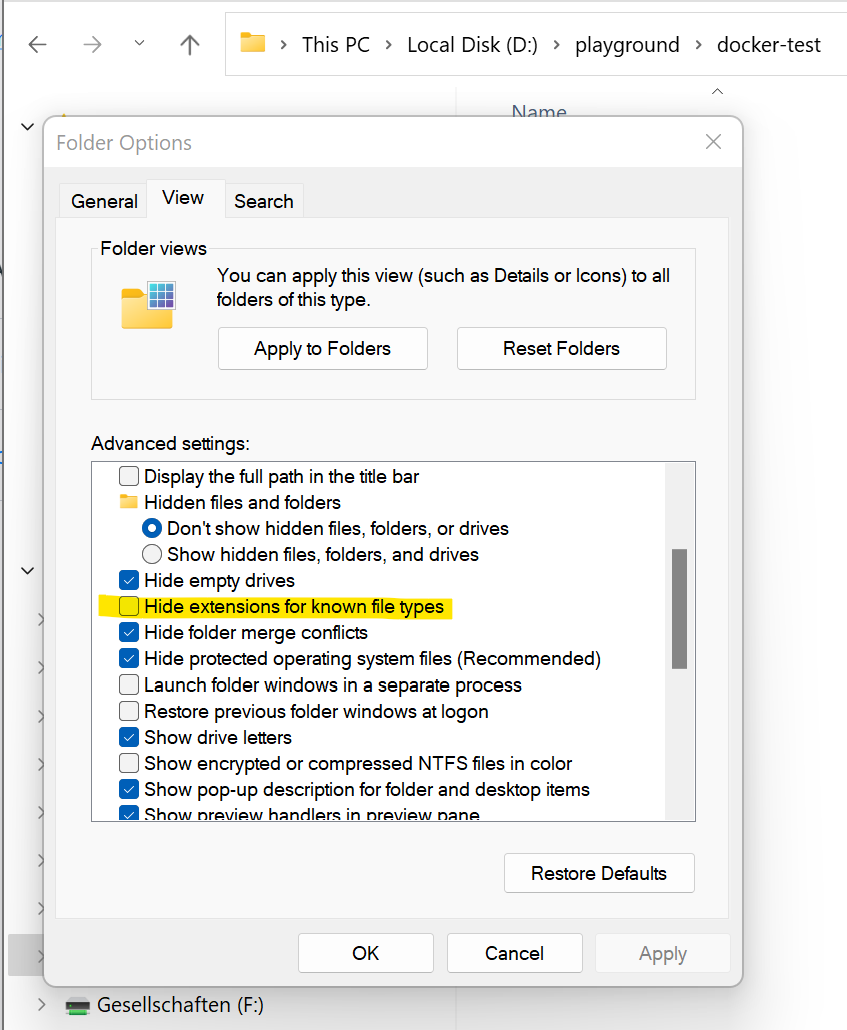
Faced the same issue on a Windows PC. The problem was with the extension of the file being assumed by the OS as a known file type.

Solution

Go to Folder options and disable the Hide extensions for known file types.

You should be able to see the actual file extension which may looked like proper .txt files now (instead of .yml). Rename the file(s) accordingly, run the command again and viola!

enter image description here

Comments

0

I was getting the similar error on windows 10 and corrected the same by saving my .yaml file again with type as "All files" and extension as .yaml. Before this windows was saving it as text file due to which it was giving error.

Comments

0

I was facing the same issue (while trying to view logs from all services in a compose file) and the top answer here solved it for me with just a small variation.

  • I had a custom docker-compose file (for example, docker-compose.custom.yml)
  • I had to use "docker compose" instead of "docker-compose"

So the below command worked for me:

docker compose -f docker-compose.custom.yml logs --follow

Comments

0

In my case, I spelt the file wrongly. I used=> docker.compose.yml rather than=> docker-compose.yml

so check the spelling of the file. it must match the command

Comments

0

for those who may have an issue with Error response from daemon: Conflict. The container name "db" is already in use by container "id". You have to remove (or rename) that container to be able to reuse that name.

  1. check to see which container running on your machine docker ps -a
  2. delete the desired container docker rm [contianer name]
  3. create the container new docker compose -f [where docker data located]/[docker yml file] up --force-recreate --build -d

Comments

0

When I downloaded YAML file it came with docker-compose3.yml file name. From that I am getting this issue.

So, when I renamed above file to docker-compose.yml name and started docker with this command docker compose up it is working fine for kafka.

Comments

0

Download docker from the official website as per the following steps will remove this error.
This is the best solution among all in internet I found.

Step 1:
Update the APT Package Index
First, update the existing list of packages:

sudo apt-get update

Step 2:
Install Required Packages
Install the necessary packages for allowing apt to use repositories over HTTPS:

sudo apt-get install -y \
    ca-certificates \
    curl \
    gnupg \
    lsb-release

Step 3:
Add Docker’s Official GPG Key
Add Docker’s official GPG key to your system:

sudo mkdir -p /etc/apt/keyrings
curl -fsSL https://download.docker.com/linux/ubuntu/gpg | sudo gpg --dearmor -o /etc/apt/keyrings/docker.gpg

Step 4:
Set Up the Docker APT Repository
Add the Docker APT repository to your system:

echo \
  "deb [arch=$(dpkg --print-architecture) signed-by=/etc/apt/keyrings/docker.gpg] https://download.docker.com/linux/ubuntu \
  $(lsb_release -cs) stable" | sudo tee /etc/apt/sources.list.d/docker.list > /dev/null

Step 5:
Update the APT Package Index Again
Update the package index again to include the Docker packages from the newly added repository:

sudo apt-get update

Step 6:
Install Docker Engine, CLI, and Containered
Install the latest version of Docker Engine, Docker CLI, and containered:

sudo apt-get install -y docker-ce docker-ce-cli containerd.io docker-buildx-plugin docker-compose-plugin

Through above step, you will end up with above "error: no configuration file provided: not found".

Note:
If you try below commands

sudo apt-get docker // or
sudo snap install docker

the above command will result with the same error.
The only solution is to follow above steps.

Comments

0

Although this answer isn't too related to OP question but for those having similar output error like OP:

no configuration file provided: not found

but getting error when trying to get the configuration file of the .yml (or .yaml, either way works) for let's say, checking correct envrionment variable replaced by using interpolation syntax:

docker-compose config
docker compose config

If your .yml (or .yaml) file is the same like Docker's default recognisable file (docker-compose.yaml or docker-compose.yml), then go to the folder that you place it and run the above command again, it will works.

But if your file is a custom named one (which in my case, docker-compose.dev.yaml), then you will have to use the -f flag to be able to have the desired command output, as Docker only recognise docker-compose.yaml (or docker-compose.yml) file by default:

docker-compose -f <the-name-of-your-YAML-or-YML-file> config
docker compose -f <the-name-of-your-YAML-or-YML-file> config

Hope this helps!

P/s: I'm not a native English speaker so some of the sentencing might sound oddly complicated or hard to understand. Sorry for that T-T

Comments

0

This solved the issue for me.

Create a file with the name "metadata.json" in the same directory as your compose.yml (legacy name: docker-compose.yml) file.

The metadata.json file must have the following content:

{
    "ComposeFilePath": "./compose.yml"
}

Comments

-1

I was facing the same issue on Windows PowerShell . I was using the docker-compose up command from within the newly created directory located in C:\WINDOWS\system32\ .

In my case, I rectified the problem by moving it to C:\Users\

1 Comment

Your answer could be improved with additional supporting information. Please edit to add further details, such as citations or documentation, so that others can confirm that your answer is correct. You can find more information on how to write good answers in the help center.
-1

On Windows, I had to run:

docker compose up --file .\config.yml -d

Comments

-2

Go to the directory containing config file. This has to solve your issue.

1 Comment

What does "go" mean? How does that resolve the problem?
-4

Double check the spelling of your files.

Comments

Start asking to get answers

Find the answer to your question by asking.

Ask question

Explore related questions

See similar questions with these tags.