Guide
In most cases, for an effect to be usable in the game, you need to create a resource pointing to the compiled file of your effect. This part of the tutorial will explain how to do so using the effect created in Part 1 of this guide.
Resource Manager
In the main Editor, locate and/or open the Resource Manager by clicking the crayon box icon in the toolbar.
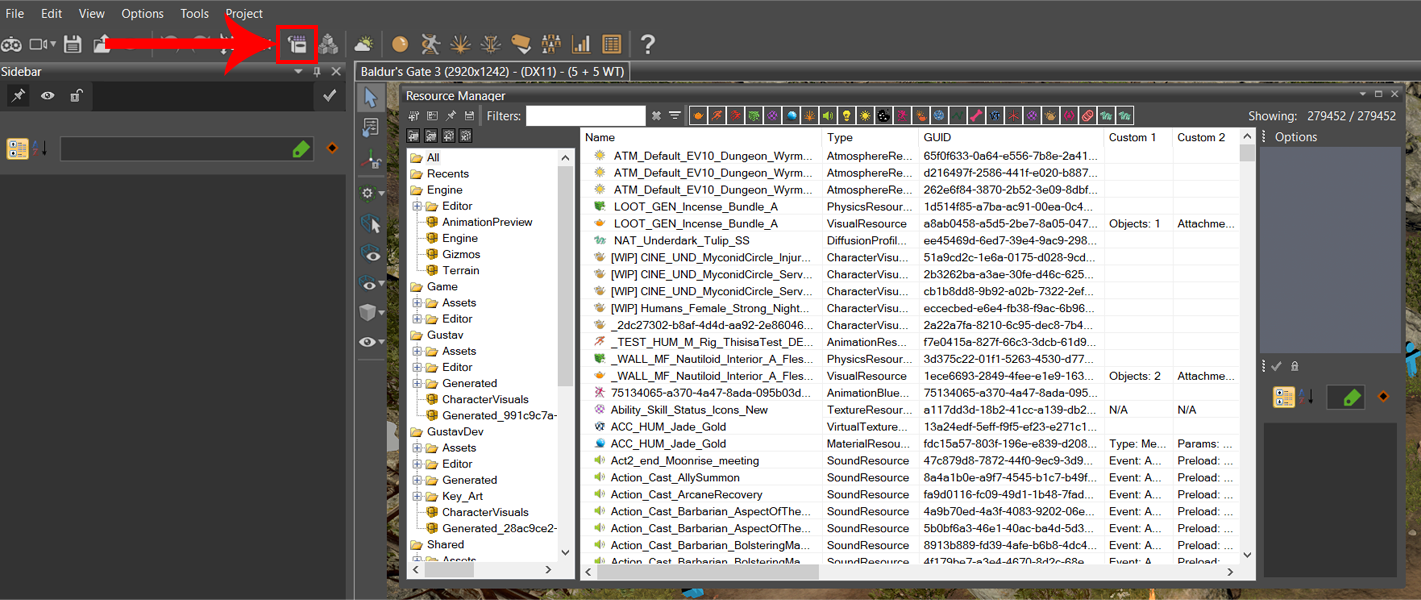
Your Resource Manager and your local folder aren’t related. You could be in the Editor making a different structure to what you are doing in your local folder.
Creating a Structure
Navigate to the folder of your mod where you want your resource to reside. You will find your own mod at the bottom of the list of folders in the Resource Manager. In this tutorial, our mod is called Test_Documentation, so the folder that was created by default has the same name and is where our files will be placed.
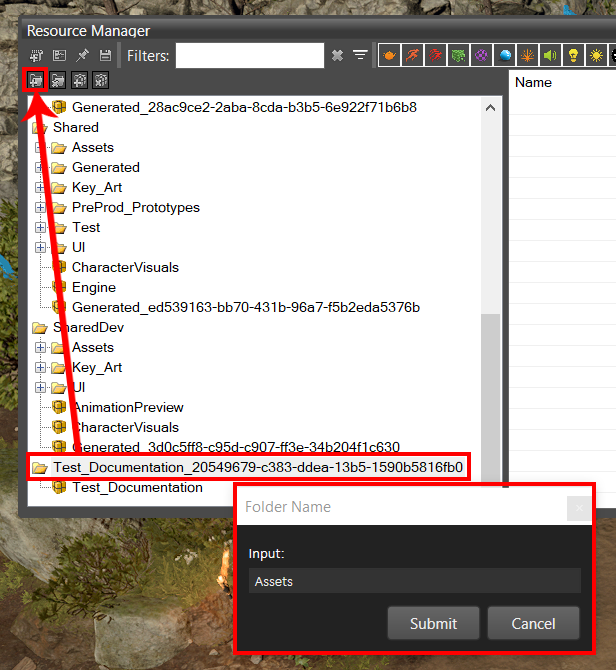
You might want to create new folders and packages following the desired structure in your own mod. For this, select the main folder of your mod and press the Create a folder button (the folder icon with a +) on the top-left of the folders panel. You can give it the name you desire, but for the purpose of this tutorial, we will follow the same structure as the main project – the one in the Shared folder – and call this new folder Assets.
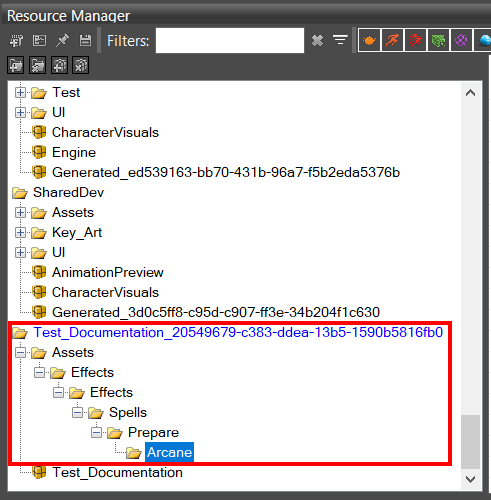
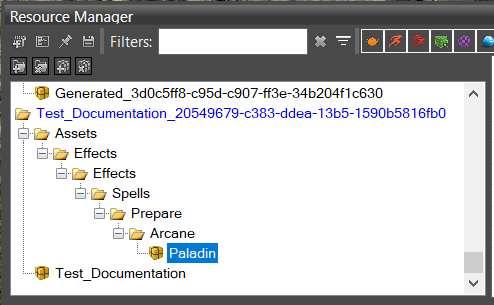
From there, we will create a folder called Effects inside the Assets folder. This will be the main VFX-related folder for the effects, the material resource, and more. Continue to add folder pathing as follows: Assets > Effects > Effects > Spells > Prepare > Arcane.
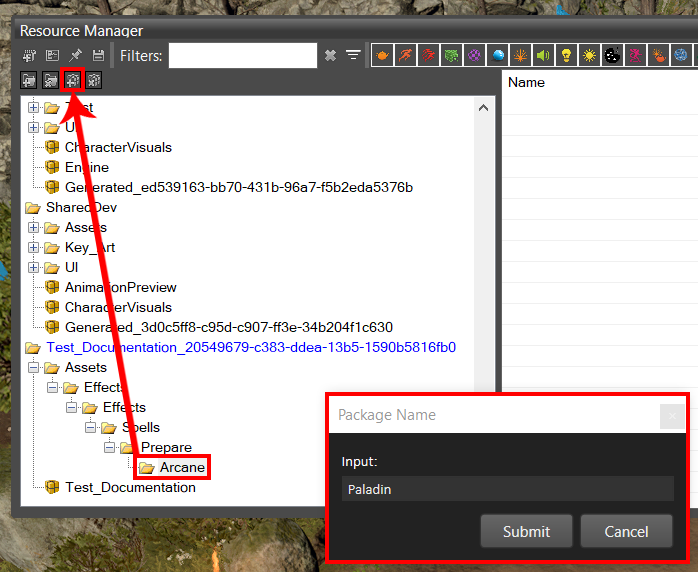
Folders can’t contain directly resources. For this, we need to create Packages. Select the Arcane folder, create a new package with the 3rd button from the top-left, and name it Paladin.
Your structure should now look like this:
We can now move on to creating the resource.
Packages that stay empty will disappear the next time you boot the Editor.
Folder and package names aren’t limited to being used only once. You could have multiple Paladin packages, for example.
Creating Resources
Select the new Paladin package created using the steps above and press the Add Resource button. A new window will open. There, select the resource type Effect.
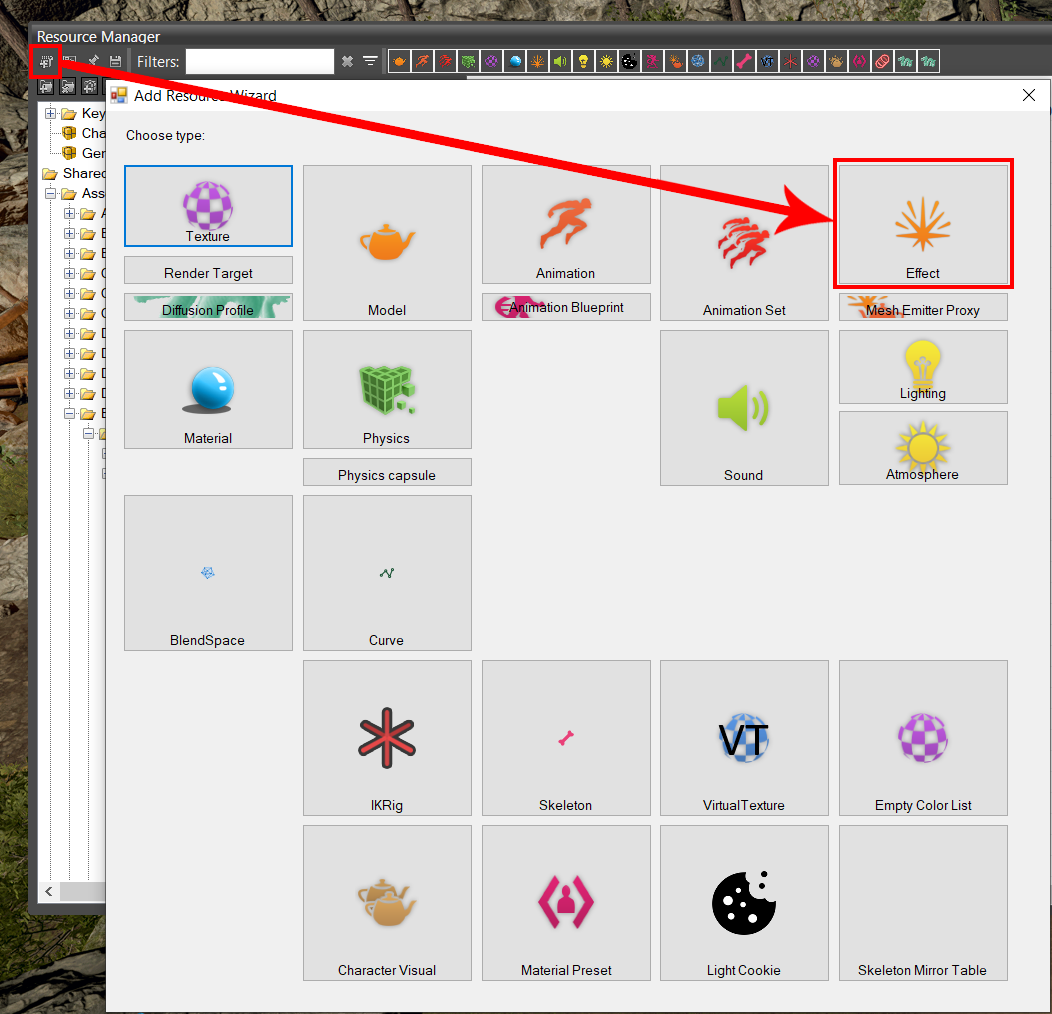
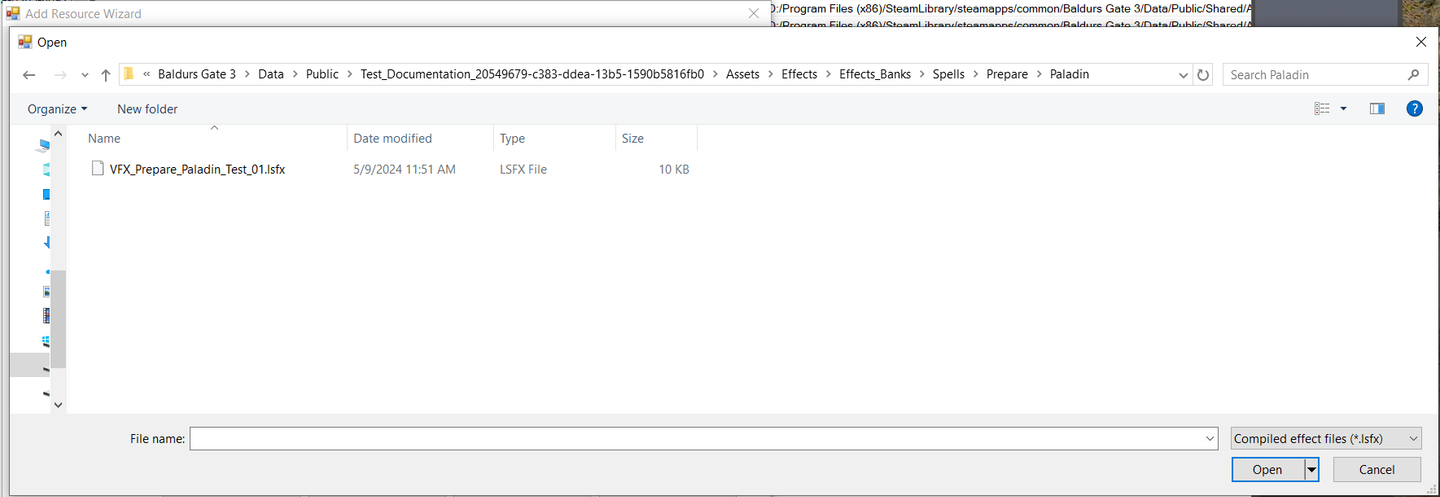
Effect resources are made from a compiled version of the effects. By default, the Editor will open right before the Effects_Banks folder where you will find the effects you compiled.
The path of your compiled effect should look something like:
\Data\Public\[YourMod]\Assets\Effects\Effects_Banks\
Navigate through the folder and locate the effect VFX_Prepare_Paladin_Test_01 created in Part 1. Select it and press Open.
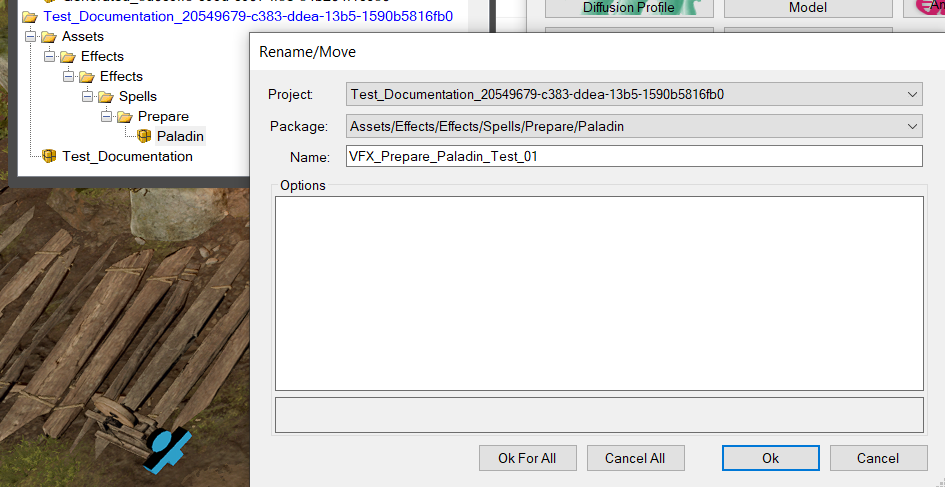
A new window named Rename/Move will then open. Since we selected the package Paladin before clicking on the Add Resource button, the Project (which means your mod) and Package should be correspond correctly. If they do not, manually select them. The name of the resource will be, by default, the same as the name of your effect. The name of your resource should always correspond to the name of your effect file. It is better not to change it.
Unlike other types of assets, you can’t have two or more VFX resources pointing at the same source file. This will trigger an error. If you desire the same effect two times, it is better to create a new effect and save it under another name.
The name of your resource should always correspond to the name of your effect file. The former is dependent on the latter. If it is changed and used, you might see an error saying that it can’t find the effect.
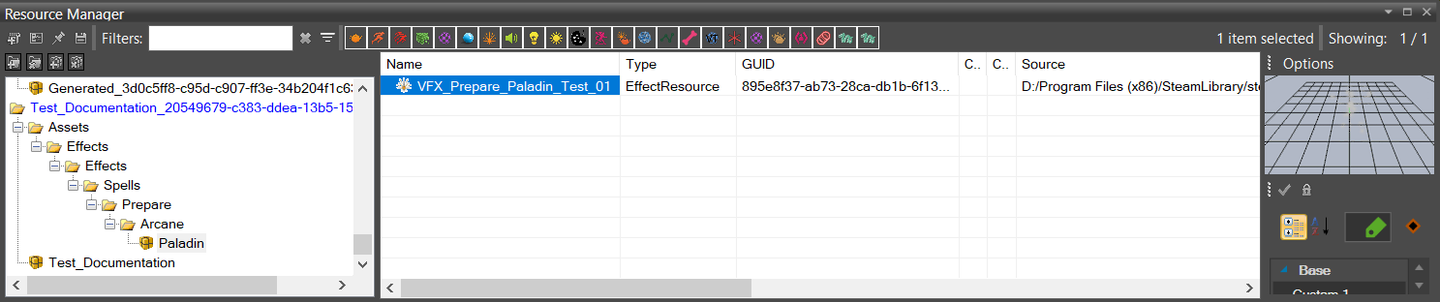
If you followed all of the above steps, you should have a new Effect Resource in the Paladin package of your VFX_Prepare_Paladin_Test_01 effect. It should look like this:
Conclusion of Part 2
The resource has now been created, and the effect is ready for use. In Part 3 of this tutorial, we will see how to assign an effect to a new spell.
Discussion 6 comments

Part 2 of the VFX tutorial. In this part, we'll create a folder structure, and import the effect we created in part 1.

mod.io uses essential cookies to make our site work. With your consent, we may also use non-essential cookies to enhance your experience and understand how you interact with our services. The latter will be set only upon approval. or read our Cookies Policy.