Guide
In this guide, we will cover how to make a simple target-based spell.
Locating the Spell Data
Open the Stats Editor via the bar chart icon located in the top right of the menu bar.

In the left column, there will be a list of Projects. Open the one that corresponds to your mod’s name – it should be the same as your project’s name. For the purposes of this guide, our mod is called SimpleNewSpell. Expand the project to see its subfolders.
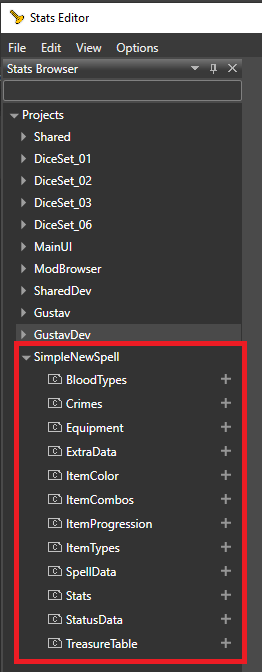
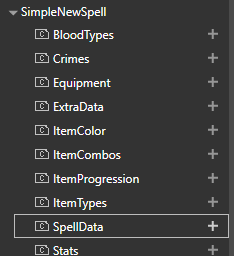
Here, you will see various sections you can open and modify. To create spells, go to SpellData and click the “+” symbol.
This will open a dropdown of the various spell types that are available in the game.
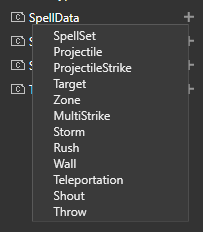
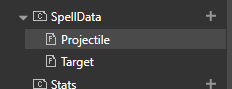
For the target spell we are making, you’ll need to add both Target and Projectile spell data. You might need to expand the SpellData folder to see your new additions.
Making a Target Spell
We will be making a Touch spell (a spell that requires the caster to touch the target) that explodes on a target. The explosion will deal Fire damage to everyone in the area and heal the caster.
Open your newly created Target spell data.

For Target spells, there are a few required fields that must be filled in for the spell to execute correctly in the game. We will be going over those required fields, as well as some extras needed for the above example.
Name (Technical Name)
You will need to fill in the Name field for the spell. This is the spell’s Technical Name, also rereferred to as its TechName. This is what the system uses to give a specific spell to the player.
This field:
-
Does not accept spaces
-
Accepts underscores
_(often used in lieu of spaces) -
Accepts numbers and uppercase and lowercase letters
In our example, we will use the TechName FireTouch.
Level and SpellSchool
If you want your spell to show up as part of a specific level (Cantrip, Level 1, etc.) or spell school (Evocation, Divination, Necromancy, etc.), fill out the Level and SpellSchool fields.
-
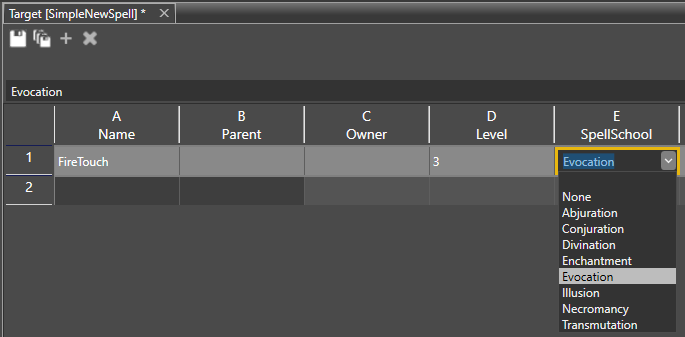
The Level field accepts numbers.
-
0 = Cantrip
-
1 = Level 1 spell
-
2 = Level 2 spell, etc.
-
-
The SpellSchool field is a dropdown of spell schools.
We want to make our spell a Level 3 Evocation spell, similar to Fireball, so we’ll fill in 3 for the Level, and select Evocation from the SpellSchool dropdown.
This information will automatically appear in the in-game tooltip.
TargetRadius
The TargetRadius determines how close the caster has to be to the target in order to cast the spell.
We want to make our spell a Touch spell. This means that the player will need to be in melee range of their target in order to cast it in the first place.
-
This field accepts numbers and decimals.
-
The field’s value is in metres.
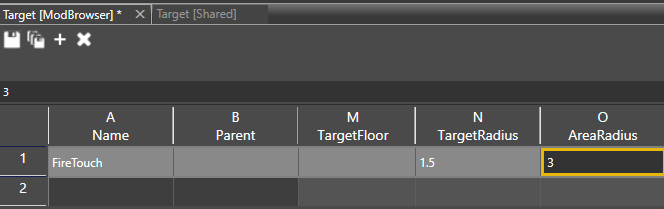
For our new spell FireTouch, we will fill in 1.5 for the TargetRadius. This is the value used for melee range in Baldur’s Gate 3.
AreaRadius
The AreaRadius determines the area of effect of the spell.
We want our spell to affect those around us, so we will also need to fill in the AreaRadius field.
-
This spot accepts numbers and will take decimals
-
This value is in meters
For our new spell, we will fill in 3. This means that the spell will effect everyone within 3 m of the target.
SpellRoll
All spells must have either SpellRoll or SpellProperties defined. In our case, we’ll use SpellRoll.
SpellRoll describes what type of spell it is. There are two common options used in BG3: SavingThrow() and Attack().
For our example, we'll make a SavingThrow type spell, which is one that requires the target to make a Saving Throw. To do so, we’ll paste the following into the SpellRoll field:
not SavingThrow(Ability.Dexterity, SourceSpellDC())
You can change the Ability.Dexterity part to be any ability type in the game (e.g. Ability.Charisma, Ability.Strength).
Because we’re making a SavingThrow type of spell, we will need to fill in the SpellSuccess and SpellFail fields. We’ll go into how to fill in both of these in the next sections.
-
SpellSuccess is for what happens when the caster succeeds, meaning the enemy has failed their Saving Throw.
-
SpellFail is for what happens when the caster fails, meaning the enemy has passed their Saving Throw.
-
The SpellFail field is optional and can be left blank.
-
SpellSuccess
Fill in the SpellSuccess field to define what happens when the caster succeeds. For our new spell, we want two things: we want to heal the caster, and we want to damage the target and any others in the area.
-
Use
IF()statements to define what happens to each character. -
To refer to the caster, use
Self(). -
To refer to everyone except the caster, use
not Self().
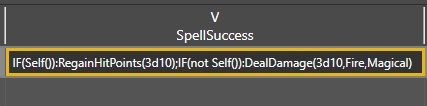
To heal the caster, we will use IF(Self()):RegainHitPoints(3d10)
-
RegainHitPoints()can take dice rolls (e.g.3d10) or specific numbers (e.g.9).
To damage the targets, since we want everyone else except for the caster to be damaged, we will use IF(not Self()):DealDamage(3d10,Fire,Magical)
-
DealDamage()can take dice rolls or specific numbers. -
Fireindicates the damage type. -
Magicalindicates that it deals magical damage, for the sake of resistance.-
Because this is a spell, the damage is magical.
-
Separate each action with a ;. Put together, it looks like this:
SpellFail
Fill in the SpellFail field to define what happens when the caster fails. We will do almost the same thing as we did for SpellSuccess, but for our new spell, we want to deal only half the healing and half the damage on fail. We can take what we wrote for SpellSuccess and modify it slightly by dividing the values by 2 using /2.
-
For healing:
IF(Self()):RegainHitPoints(3d10/2)orIF(Self()):RegainHitPoints((3d10)/2) -
For damage:
IF(not Self()):DealDamage(3d10/2,Fire,Magical)orIF(not Self()):DealDamage((3d10)/2,Fire,Magical)
Again, separate each action with a ;. Put together, it looks like this:

TargetConditions
TargetConditions filter out who the caster can cast the spell on. For example, if we input Self(), the player would would only be able to cast the spell on themselves.
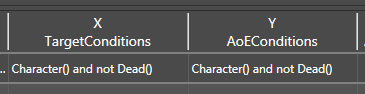
Because we want the player to target any character that is alive, we will use: Character() and not Dead()
AoEConditions
If we want the Area of Effect (AoE) of this spell to affect a specific type of character, we can define the conditions in the AoEConditions field. For example, if we only want the AoE explosion to affect the enemies of the caster, we can write Enemy() here. Another valid option in this field is Ally().
In our new spell, FireTouch, we want everyone to be damaged, so we’ll use the same as TargetConditions.
Player-facing Information
This next section of stats columns is all about filling the player-facing and tooltip information, so players can understand what the spell does.
Icon
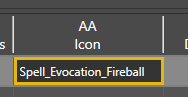
Here you can define an icon. For the purposes of this guide, let's reuse an existing spell icon from the Fireball spell: Spell_Evocation_Fireball.
DisplayName
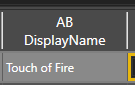
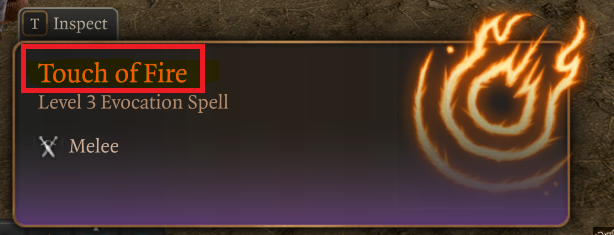
This will be the spell name shown on the tooltip. Let’s call our new spell Touch of Fire.
Below, you can see how this name would appear on the tooltip.
Description
This will be the information given to the player when they view the tooltip. This text should only include letters. Generally, you want to give players an idea of what the spell does.
For our spell we will write:
Touch an enemy with the force of a fireball. Everyone in the area will take [1] and the caster will be [2].
DescriptionParams
As you may have noticed in the above description we used a [1] and [2]. These are filler spots for the description parameters - DescriptionParms.
In our spell’s tooltip description, we want to indicate that enemies take damage and the player is healed, so we will grab the same DealDamage() and RegainHitPoints() as we added to the SpellSuccess.
We will plug them into the DescriptionParms in same order we want the tooltip to display it.
-
[1] should be DealDamage(3d10,Fire)
-
[2] should be RegainHitPoints(3d10)
So into DescriptionParms, we’ll input DealDamage(3d10,Fire);RegainHitPoints(3d10)
Note that in this version of DealDamage() for the tooltip, the Magical is not used.

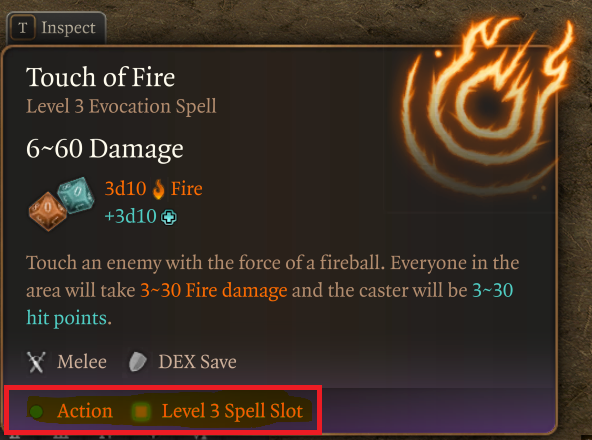
If done correctly, your tooltip for the spell would now have text that indicates the damage and healing given by the spell:

TooltipDamageList and TooltipAttackSave
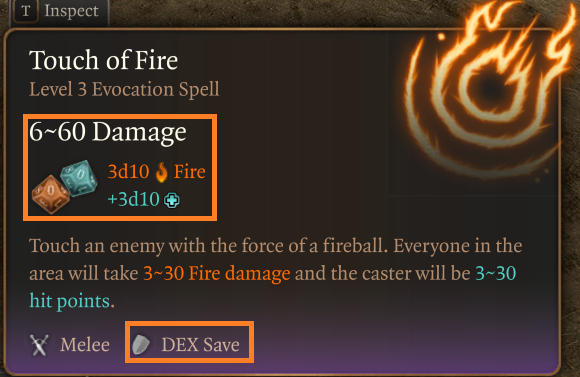
These are the last bits of the tooltip that we will be modifying for our spell. The TooltipDamageList gives the player a visually concise way to see the damage and healing effects of the spell. This will use the exact same functions as our DescriptionParms.
DealDamage(3d10,Fire);RegainHitPoints(3d10)
The TooltipAttackSave is used for Saving Throw spells to indicate what type of save it is. Our spell is a Dexterity based save so we will put Dexterity in this section.

With those fields filled in, your spell’s tooltip would now show the dice visual, as well as the DEX Save at the bottom.
CastTextEvent
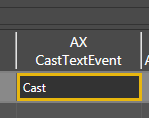
Spells all need their CastTextEvent filled out. This is related to the animation that the caster is using – animations look for this cast event to in order to execute parts of the spell.
For our spell we only want to execute one cast event, so we will just write Cast in this column.
If you forget to fill this out, your animation may have a delay instead of casting smoothly.
UseCost
This is used to determine what resource is needed to cast the spell. Right now, there is no use cost associated with our spell.
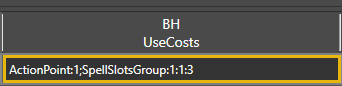
Let’s say that we want FireTouch to cost one Action Point and one Level 3 Spell Slot.
-
ActionPoint:1
-
This means it will cost one Action Point.
-
-
SpellSlotsGroup:1:1:3
-
This means it will take one level 3 spell slot to cast the spell.
-
If you have done this correctly, your tooltip would now show the cost of the spell as below:
Spell Animation
All spells need a spell animation in order to be used. Without a spell animation, the spell cannot be cast.
Let’s grab an existing animation and use it. In the Stats Editor, unfold the Shared section on the left, then unfold the SpellData inside it.
Open the Target file inside that SpellData by double clicking on it.
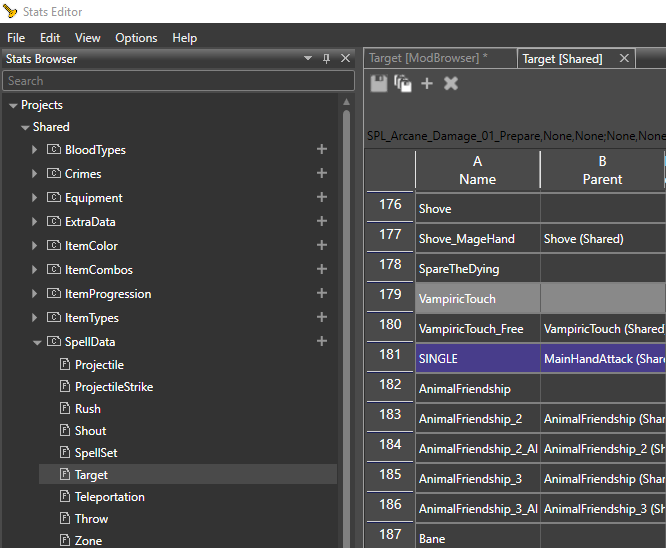
We are looking for a Touch animation spell, so we will Ctrl+F to open the search bar at the bottom and type in 'Touch'. Press Enter to search.
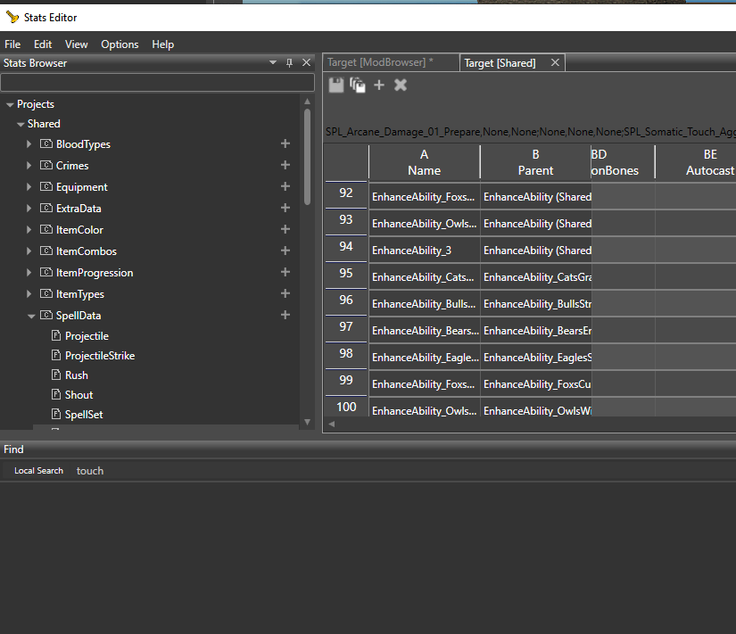
You should see the area below the search bar update with the results, showing you all the spells in the Shared Target file that have the word Touch in their name.
Let’s use the Vampiric Touch animations.
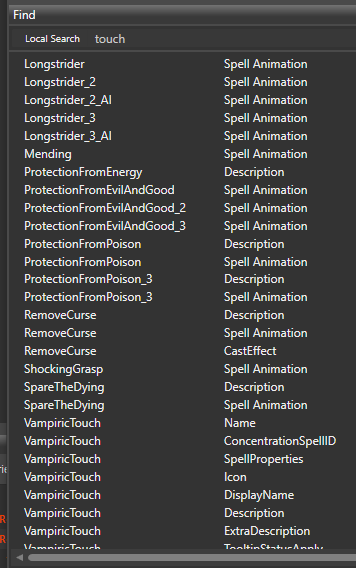
If you double click on Vampiric Touch (any of the VampiricTouch results will do) it will take you to that row in the Target file. It should be row 179.
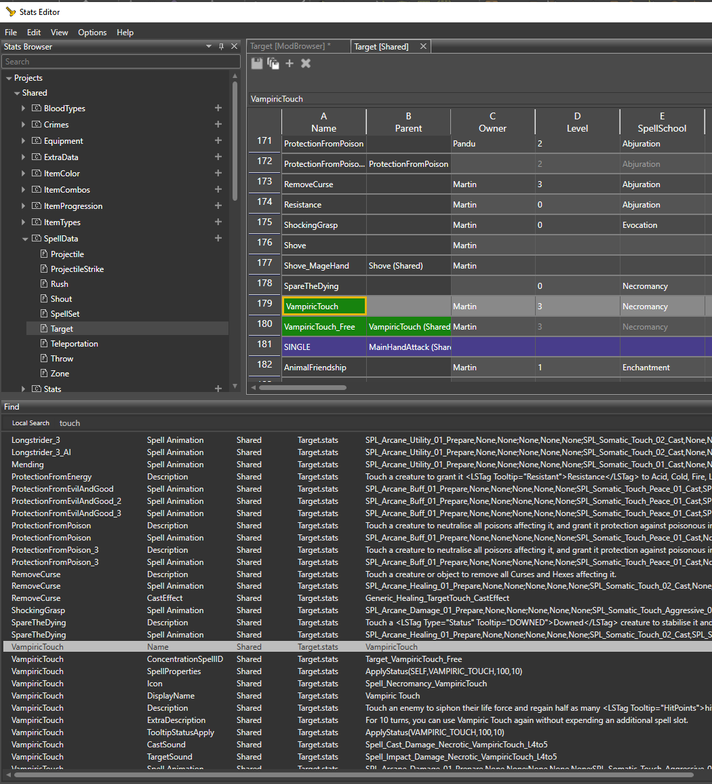
Scroll over until you find the SpellAnimation column (column BL).
Click on the cell containing VampiricTouch’s Spell Animation data, and Ctrl+C to copy all the spell animation information.
Return to your mod's Target file and Ctrl+V paste the copied spell animation into FireTouch’s Spell Animation column. Your Spell Animation column should now look like this.

PrepareEffect, CastEffect, HitEffect
These effects are how we apply visuals onto our spells. All of these columns are dropdowns that show all the existing effects available in game.
If you’d like to make your own effects, please refer to the VFX Guide [[coming soon]] - but for now we’ll use some existing visuals.
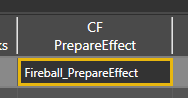
PrepareEffect is the pre-casting of the spell. This is the period after you have chosen a spell, but you haven't yet selected the target. For FireTouch we want something fire-based, so let’s type ‘fire’ into the drop down to filter down the results.
The PrepareEffect requires an effect that has the _PrepareEffect suffix, so let’s use Fireball_PrepareEffect.
CastEffect is the visual on the caster while the spell is being executed. You might have noticed earlier that Fireball also has a cast effect, so let’s use that one here. Like with PrepareEffect, the CastEffect should have the _CastEffect suffix.
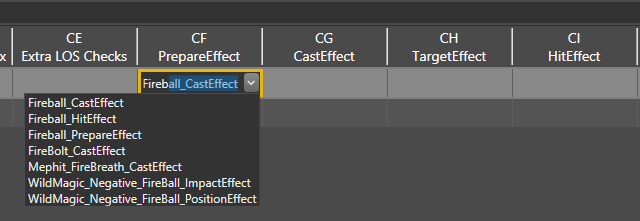
Finally, HitEffect is for the visual that plays on the target of the spell when it connects with them. Here too, the effect should end in _HitEffect, and once again we’ll reuse the one from Fireball: Fireball_HitEffect

PrepareSound, PrepareLoopSound, CastSound
These fields are how we apply sounds onto our spells. Creating new sounds is not supported at this time, and therefore the best method is to look for a similar spell and copy values from it to our spell, much like we did for the VFX. For our FireTouch spell, we’ll copy the Firebolt sounds from Shared → Projectile:
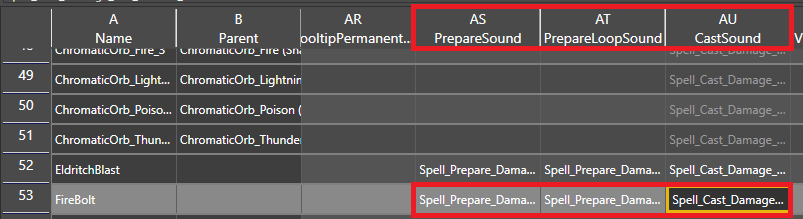
Now our spell should have sound!
SpellFlag
Spell flags are used to give additional information on how the spell is expected to behave. These can vary from case to case. The dropdown in this field allows multiple options to be selected.
For FireTouch, let’s select the following:
-
HasVerbalComponent
-
HasSomaticComponent
-
IsMelee
-
IsSpell
-
IsHarmful
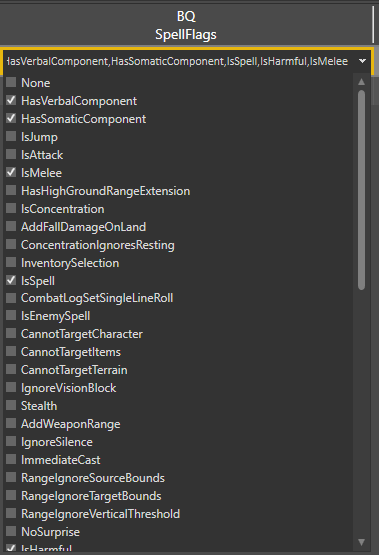
HasVerbalComponent: Spells with this flag will become unusable if the caster is Silenced.
HasSomaticComponent: Used for spells that require somatics in order to cast.
IsMelee: Used for attacks and/or spells that are within melee range.
IsSpell: Recommended for any spell that is meant to be considered a spell in DnD. Using this flag makes the spell work with other systems like silencing, counterspelling and armor proficiency requirements. Without this flag, your spell will show as a 'Class Action' on the tooltip if its spell level is 0.
IsHarmful: If enabled, this flag lets the AI know whether or not to bring NPCs into combat. If the spell does damage, this should naturally happen, but if there’s a chance that the target could save and negate the damage, we want this flag there as well.
A few other common flags that are not being used in this example, but might be interesting:
-
IsConcentration: Used to make a spell into a concentration spell.
-
IsAttack: Used for attacks that are not meant to be magical.
-
Temporary: Used to open the temporary section of the hotbar for spells that the player only has for a short time.
Testing Our Spell
Now, with all of these fields filled out, we can test the spell. To test the spell, we need to add it to one of the class spell lists so we can pick it during Character Creation or Level Up.
Open the UUID Editor and create a new SpellLists table in the Lists section:
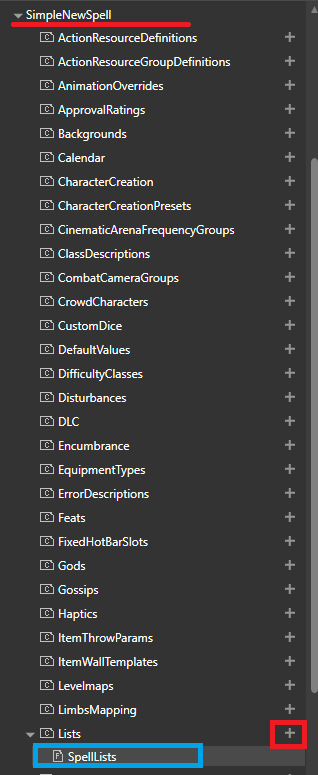
Also in the UUID Editor, go to Shared → Lists → SpellLists. Look through this existing SpellList for one that you’d like to modify. Remember that we made FireTouch a level 3 spell, so you should choose a level 3 spell list. For testing in this guide, we’ll use the level 3 SpellList for Clerics:

Copy UUID field from the Shared SpellLists table and paste it into your mod’s SpellLists:
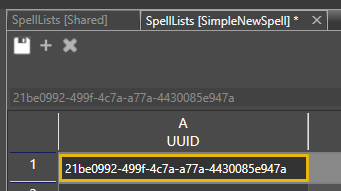
Repeat this copy & paste for the Spells field. This is so we keep the original Cleric list intact. Add the tech name of our new spell at the end, separated by ;.
The “tech name” we refer to here is the
SpellType_SpellName.In this case, the type is
Target, and the spell name isFireTouch, so together it becomesTarget_FireTouch.
We can leave Comment field empty. This field is not used by game in any way, and only serves as a note for developers.
Save all of your changes thus far.
To test, you’ll need to load a level, if you haven’t already. Basic_Level_A is perfectly sufficient. Once a level is loaded, enter Game Mode.
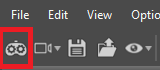
With your cursor over the character portrait, press Ctrl+Shift+L to level them up. Click the Level Up button to enter the Level Up screen.
If your test character isn’t already a Cleric, add the Cleric class using the Multiclassing menu.
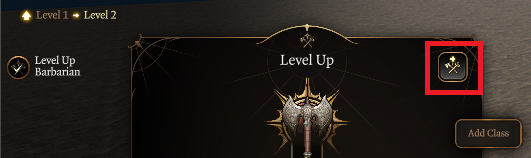
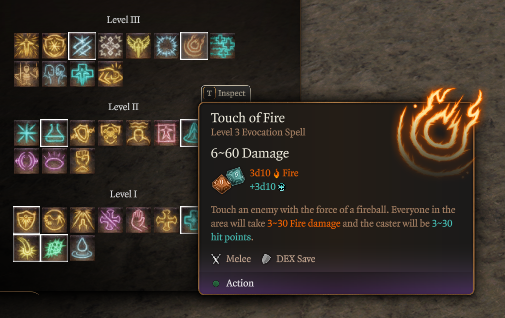
You’ll need to level up a few more times, until you’re a level 5 Cleric, to get your level 3 spells list. Once there, go to the Spells tab - in the list of available spells, you should see the newly added spell: Touch of Fire. Once we pick it, we can use it in game and check that all parts work as intended.
TargetRadius and HitRadius
Use Ctrl+Shift+3 to spawn in a wolf.
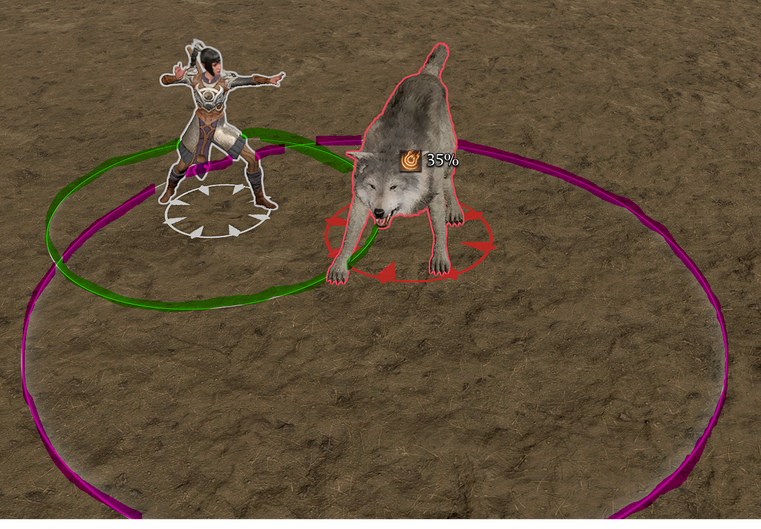
When casting the spell, there are two circles present on the ground. The smaller circle (highlighted green in screenshot below) is our TargetRadius of 1.5, and the larger circle (highlighted magenta) is our AreaRadius.
PrepareEffect, CastEffect, HitEffect, SpellAnimation
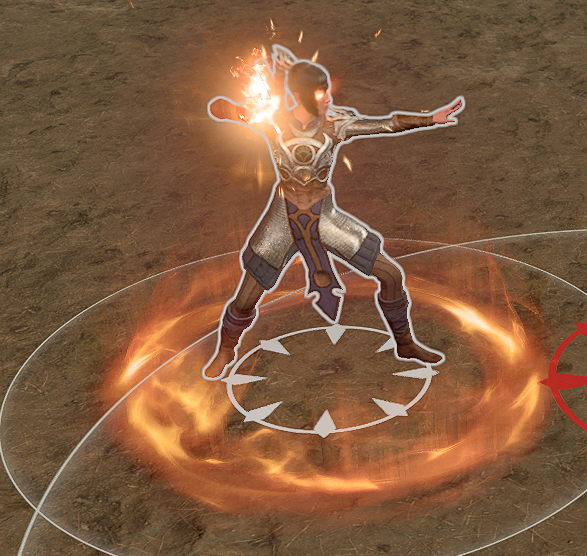
When going to cast our spell, we should be able to see that our character has a fire-based visual around her. This is the PrepareEffect along with the Spell Animation.
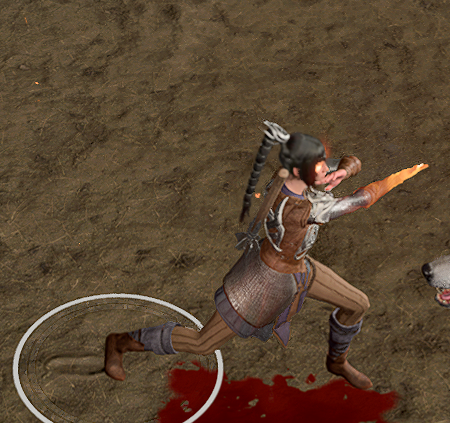
When the charater goes to cast the spell, we can see them step forward with a glow on their hand. This is the CastEffect and Spell Animation.
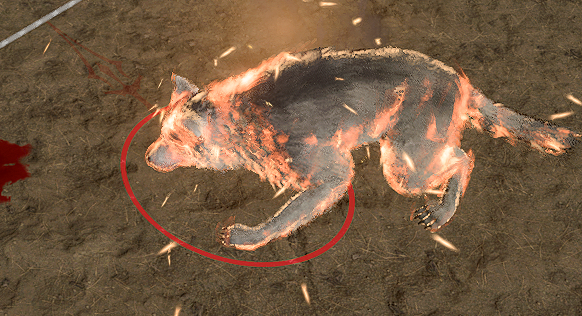
When the spell is used on the wolf, we can see it that it has a fire effect. This is the HitEffect.
Combat Log
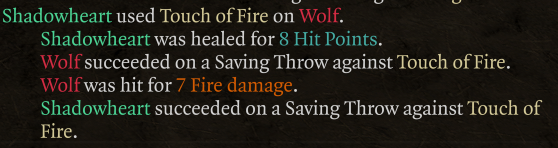
In this example, Shadowheart was the caster of the spell against a wolf. In the combat log, you can double-check the values of the spell: our wolf enemy was dealt 7 fire damage (3d10/2) and Shadowheart was healed (3d10/2) because they both passed their saves.
Discussion 92 comments


- Guide
- Locating the Spell Data
- Making a Target Spell
- Name (Technical Name)
- Level and SpellSchool
- TargetRadius
- AreaRadius
- SpellRoll
- SpellSuccess
- SpellFail
- TargetConditions
- AoEConditions
- Player-facing Information
- Icon
- DisplayName
- Description
- DescriptionParams
- TooltipDamageList and TooltipAttackSave
- CastTextEvent
- UseCost
- Spell Animation
- PrepareEffect, CastEffect, HitEffect
- PrepareSound, PrepareLoopSound, CastSound
- SpellFlag
- Testing Our Spell
- TargetRadius and HitRadius
- PrepareEffect, CastEffect, HitEffect, SpellAnimation
- Combat Log
- Discussion
A step-by-step guide on creating a simple new spell - a Touch spell that explodes on a target, dealing Fire damage to everyone in the area, and healing the caster.

mod.io uses essential cookies to make our site work. With your consent, we may also use non-essential cookies to enhance your experience and understand how you interact with our services. The latter will be set only upon approval. or read our Cookies Policy.